Download & Install
Get Started with Feather
Installation takes only a few minutes. Try all features for free for 30 days.
Download Feather_1.0.0_x64-setup.exeWindows 11 (x64) · v1.0.0 · GitHub Releases
Installation Guide
3 Simple Steps
System Requirements
- Windows 11 (64bit)
- 4GB RAM or higher recommended
- 100MB free disk space
Run the Installer
Double-click the downloaded Feather_1.0.0_x64-setup.exe to run it.
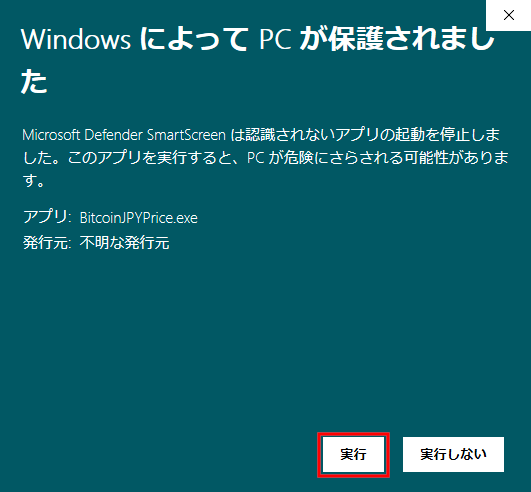
If a Windows SmartScreen warning appears, please see the "About SmartScreen" section below.
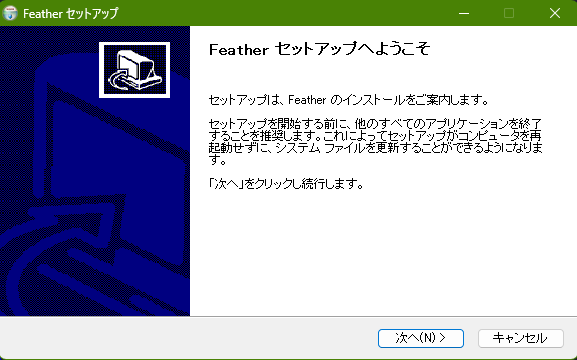
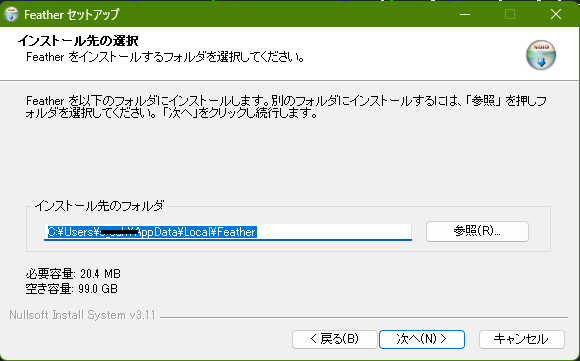
Follow On-Screen Instructions
Confirm the installation destination folder and click 'Install'. It will finish in a few seconds.
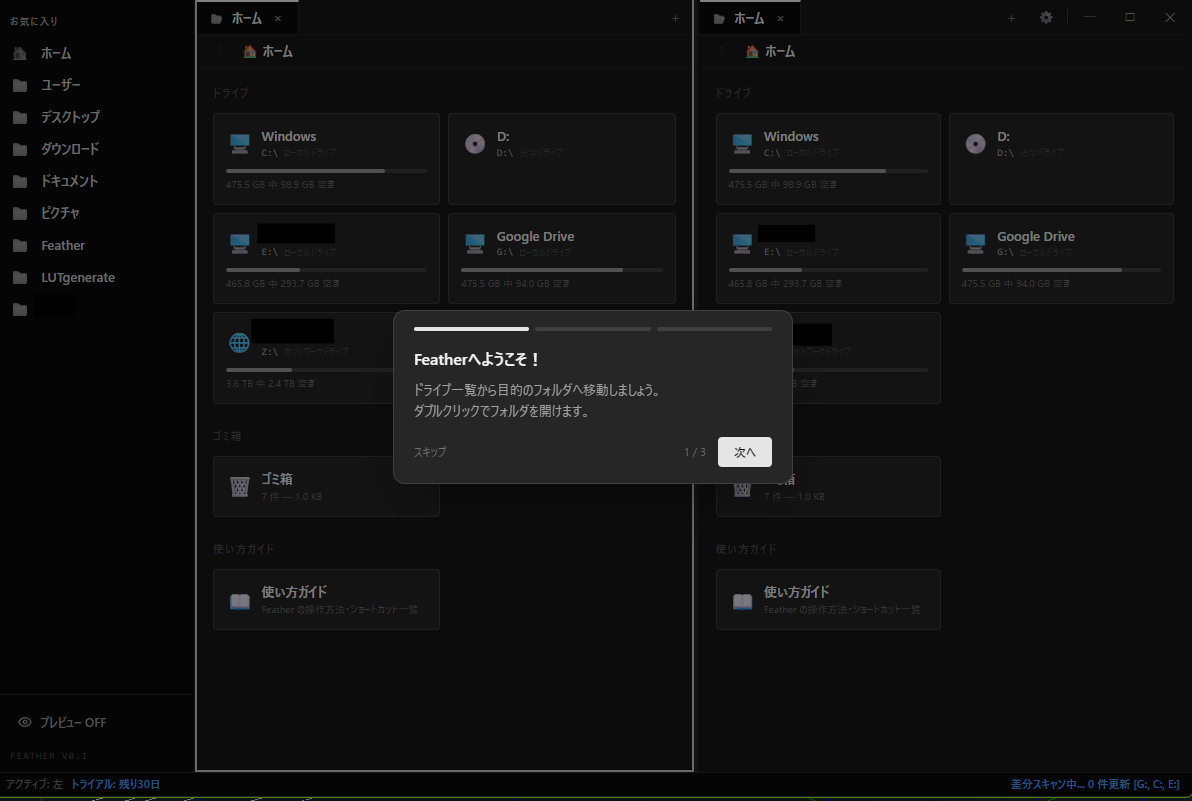
Launch Feather
Start Feather from your desktop or start menu. A quick guide will be displayed on the first launch. You can use all features for free for 30 days. Even after the trial, basic functions like file browsing will remain available.
About SmartScreen
Resolving the Warning
Because Feather is a relatively new app, Windows SmartScreen may show a warning upon the first installation. This is a common phenomenon for independent developer apps and does not mean there is an issue with the app itself. You can install it safely by following these steps.
Click 'More info'
On the SmartScreen warning window, click the 'More info' link.
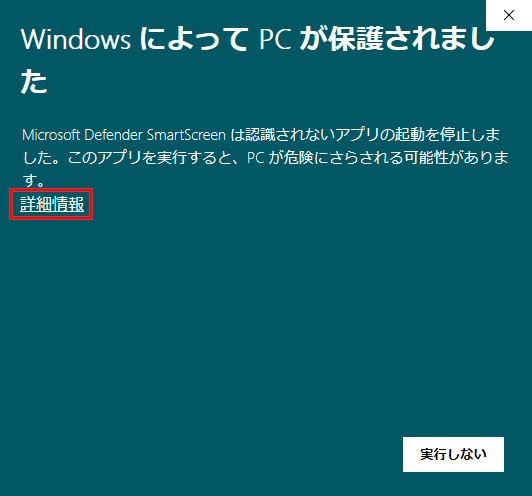
Click 'Run anyway'
After clicking 'More info', a 'Run anyway' button will appear. Click it to begin the installation.
About Independent Apps
SmartScreen displays warnings for apps that have not yet built up enough reputation history. Feather does not contain any malware or malicious code.
Contact Details
If you have any concerns, please feel free to contact us at ena-dri.dev.
30-Day Free Trial
Try it out first.
If you like it, you can buy a license to keep using all features indefinitely.